How to record your first production
Record what you made, either one make order at a time with a timer running, or a whole week at once from your payroll. Either way the finished stock is added, the ingredients come out, and the labor goes into its cost.
You can do it two ways. Time a make order while you work, or record a week you've already made in one go.
Make one order and time it
- Go to Make Orders and click Add Make Order.
- Under Order Details, choose What are you making? (a product, a recipe or one of its outputs, or a package) and enter How many are you making?. Check who it's Assigned to.
- Click Save.
- Set Production status to In progress, then click Start Production. This takes the ingredients and packaging out of stock, and it can't be undone.
- Go to the Production tab. On each task card, press play when you start and pause when you stop. On a phone the buttons read Start, Pause and Done.
- When a task is finished, press the check mark, then Complete & Create Batch. If you didn't run the timer, choose Use estimated time or Enter the actual time spent.
When every task is done, the make order turns Done. In a hurry? Set Production status straight to Done, and Quick Complete finishes every task left with Complete Order.
Record a whole week at once
Only owners and admins can record a week.
- Go to Make Orders, open the menu on Add Make Order and choose Record Weekly Production.
- Under Production Details, pick the Week. Weeks run Sunday to Saturday, and you can record one once it has ended.
- Under What Was Made, check each product and how many you made. The list starts from that week's sales orders, minus anything a make order already made. Click Add Item for anything missing.
- Under Who Produced Them, check each person's Hours. Your staff are listed at their usual weekly hours. Click Add Worker for anyone else.
- Click Save.
- When it's right, set Production status to Completed and click Record This Week.
A recorded week can't be deleted or changed. If something was off, record the difference in a later week.
What you'll see
Each finished task makes a batch in stock, numbered like B2026-10-CAR1. It expires after the item's shelf life, or after 30 days if the item has none. The batch costs its ingredients and packaging plus its labor: the time spent at the hourly cost of the person it was assigned to.
Every timed run also updates how long that item takes, so the next estimate is closer to real.
A recorded week makes one make order per product, already complete, and adds the products to stock with their ingredients taken out.
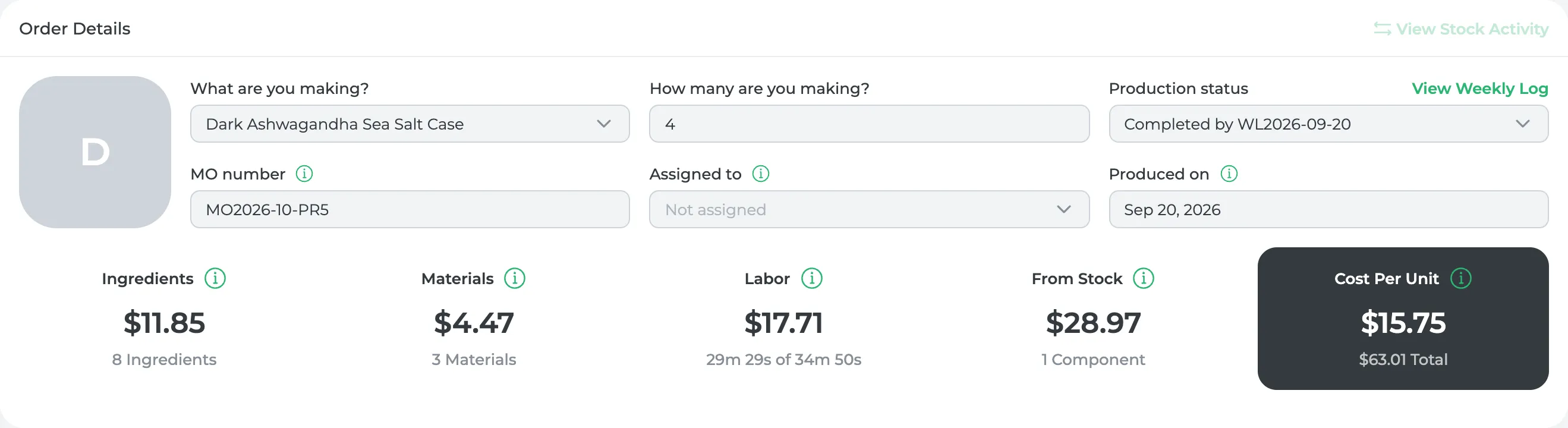
Its Production status reads Completed by and the week's log number, and View Weekly Log opens the week. Each one's labor comes from your payroll. The week's pay divided by the hours paid gives a rate, and each product gets its assembly time at that rate. Time that didn't go into a product, like cleaning or setup, is Indirect Labor and stays with the week.
Don't see Make Orders? It's hidden when Settings > Production Setup says a co-packer handles both your products and your packaging.
Did this answer your question?
Thanks for letting me know.
Thanks. I read every one of these myself.