How to create a purchase order
A purchase order records what you bought from a supplier and what you paid. When the delivery arrives, mark it received and the stock is added, each lot costed at what this order cost you, shipping and tax included.
Create a purchase order
- Go to Purchase Orders and click Add Purchase Order.
- Under General Information, pick the Supplier. Prophitable fills in the PO Number, the Expected Arrival from the supplier's lead time, and the tax and shipping from the supplier's Order Settings.
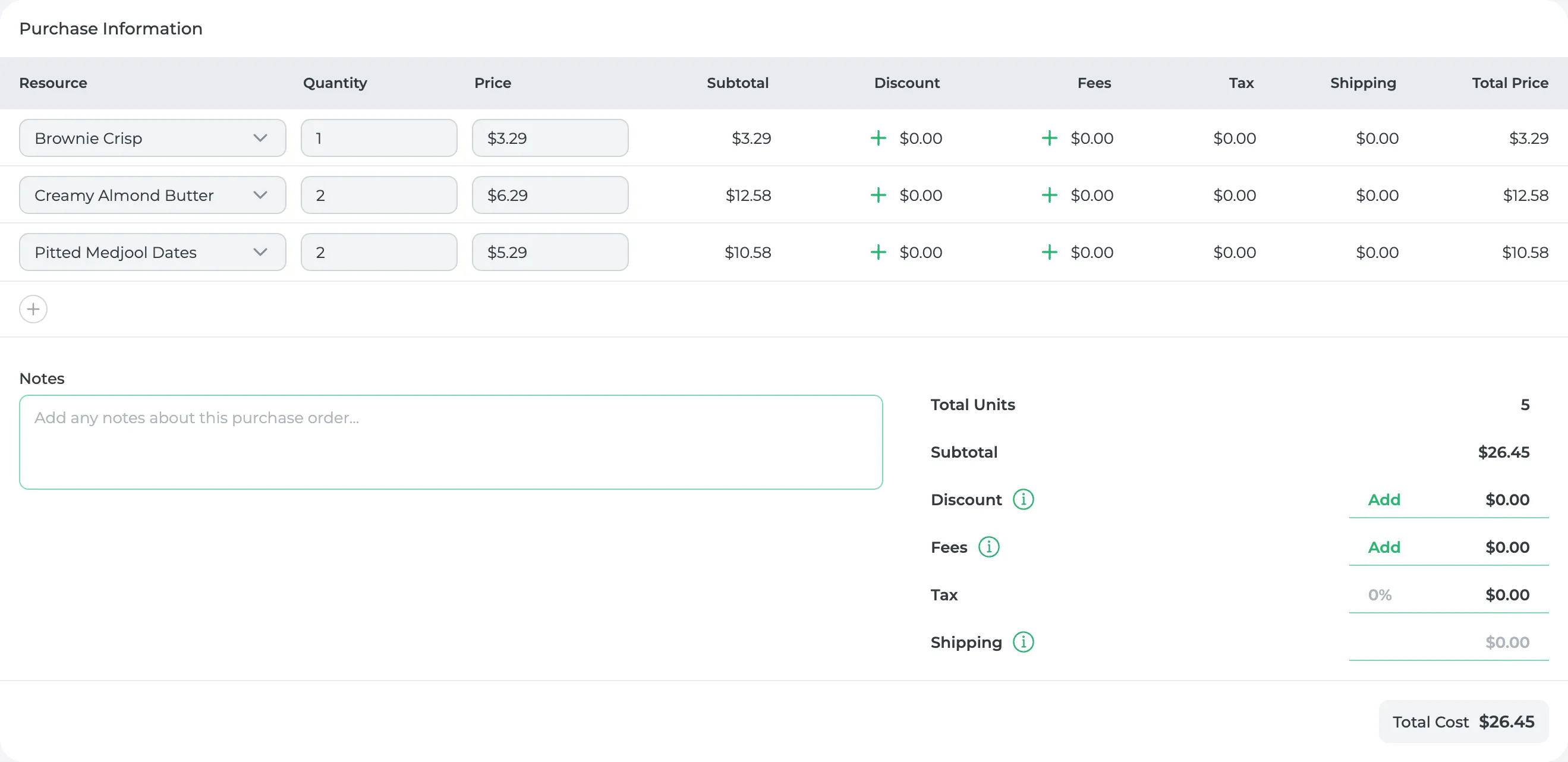
- Under Purchase Information, click Add Resource and pick what you're buying, as a single unit or a case. Only items you buy from this supplier are listed. To buy something new from them, click Add Resource inside the list to create it.
- Enter the Quantity and check the Price. It starts at the price you last saved for this supplier.
- Click Save.
If a price differs from the one saved for this supplier, you'll be asked Update price? first (more below).
Receive the delivery
- Open the purchase order.
- Under General Information, set Status to Received all.
- Only part of it came? Choose Received some, tick the lines that arrived and click Receive Stock. Each line is received whole.
On the Purchase Orders list, a row's menu also has Receive All. To receive several at once, tick them and click Receive All above the list. If any prices changed, you're asked Update price? once, for all of them.
Update price?
When what you paid differs from the price saved for this supplier, Save, Received all and the list's Receive All ask Update price?:
- Update Price saves the new price on the item. Your recipes, packaging and products are re-costed with it.
- Save Without Updating keeps the saved price. This order still uses what you paid.
- Cancel saves nothing.
What you'll see
Each received line becomes a lot in stock, numbered like L2026-10-FLO3 and dated the day you received it. An ingredient's lot expires after the ingredient's shelf life.
Each lot costs what you paid on this order, plus its share of the shipping and fees, and of the tax if the item is taxed. Make orders that use it are costed from that.
The order's status moves from Not received to Partially received to Received. A received order is locked, apart from its Tax and Shipping. You can only delete an order that's still Not received.
Did this answer your question?
Thanks for letting me know.
Thanks. I read every one of these myself.