How to set up price lists
A price list holds the prices one group of customers pays, like a wholesale account or your schools. Give a customer location a list, and every product you add to its sales orders takes the list's price.
Set up a price list
-
Go to Settings and click Catalog & Price Lists.
-
Click Add Price List.
-
Under Details, enter a Name (for example "Wholesale" or "Schools") and, if it helps, a Description.
-
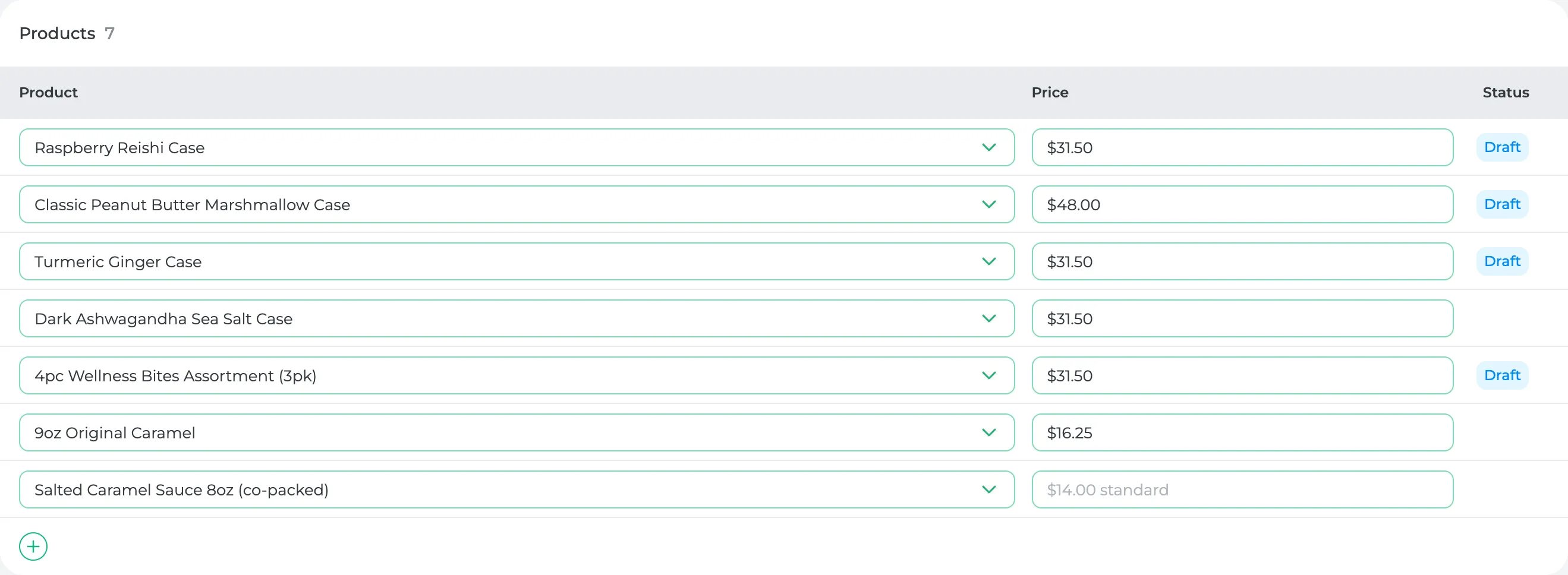
Under Products, click Add Product to add products one at a time, or Add All to add your whole catalog (or one category). Enter the Price this list pays for each.
- Leave a price blank and that product uses its standard price.
- A product you don't add isn't on the list, and also sells at its standard price.
-
Click Save.
Give a customer a price list
- Go to Customers and open the customer.
- In Locations, open the location and find Order Terms.
- Choose the list under Price List. You can also click Create New Price List from there.
- Click Save in the window, then Save on the customer page.
Each location can have its own list. One list can be shared by as many locations as you like, so a price change on the list reaches all of them.
What you'll see
On a sales order for that location, the product picker shows the list's products first, under "On Wholesale price list", and every product you add takes that price. Products under "Other products" use your standard price.
Orders that already exist keep the prices they were made with.
Did this answer your question?
Thanks for letting me know.
Thanks. I read every one of these myself.