How to invoice your customers and record payments
When a sales order ships, its invoice is drafted for you. Check it, send it by email with the PDF attached, and record payments as they come in. Reminders go out on their own until it's paid.
Invoicing is on every plan. Only owners and admins see Invoices and the money on them.
Before your first invoice
Each customer needs two things under Order Terms on their customer page:
- Payment Terms, like Net 30. The due date is worked out from them.
- Billing Email, if invoices should go somewhere other than the contact email. Leave it blank and the contact email gets them.
Missing one? You can fill it in when you send. Terms you pick there can be saved to the customer too.
Your invoice is drafted when the order ships
Set a sales order's Ship Status to Shipped and a draft invoice is made with its number, like INV2026-11-COR2. It has the products as shipped, the order's discount, shipping and sales tax, and it adds up to the order's total.
Orders shipped before you started invoicing have no invoice. Open the order and click Create Invoice next to Invoice.
Check and send it
-
Go to Invoices (under Finances in the menu).
-
Open the draft. Here you can change the Billing Email, the Due Date and the Note the customer sees, and add a fee or a discount. Memo is for you; customers never see it.
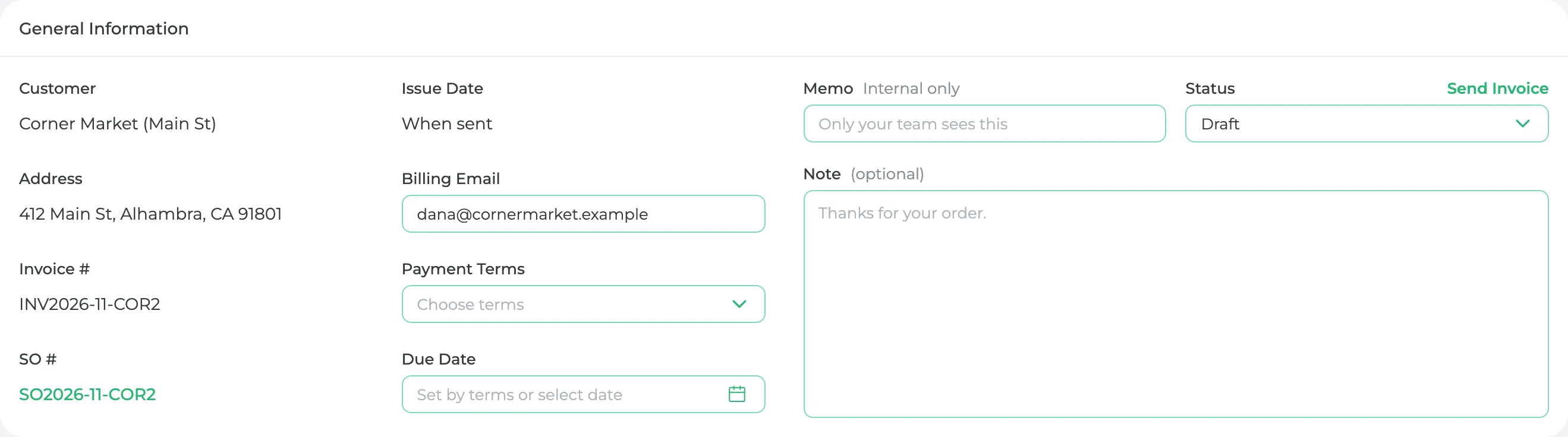
-
Click Send Invoice, or tick several drafts on the Invoices list and click Send Invoices to send them together.
-
Tick Send me a copy if you want one, then click Send Invoice (or Send Invoices).
The customer gets an email with the PDF attached and a link to view the invoice online. A sent invoice can't be edited. To change one, Void it and Reissue: you get a new draft with your edits carried over.
Paid already, cash on delivery for example? Choose Mark Paid instead of sending.
Record a payment
-
Open the invoice and click Record Payment in Payments & Credits. You can also start from the Invoices list or the customer's Billing tab.
-
Enter the amount, the date and how they paid (Check, ACH, Card, Cash, Wire or Other), and a reference like the check number if you have one.
-
The payment goes to their oldest open invoices first. Change the amounts if it was meant for a different one. Anything left over is kept as credit for that customer, ready to apply to their next invoice.

Recorded one by mistake? On the customer's Billing tab, Void Payment reopens the invoices it paid.
Payments customers make online are recorded for you. See Get paid online.
Credit something back
Click Issue Credit Note on a sent or paid invoice, pick the products and quantities to credit, and add a reason. It lowers what's owed. On an invoice that's already paid, the credit is kept for the customer. A credit note can't be undone.
Payment reminders
Send payment reminders is on in Settings › Invoicing. Customers get a reminder 3 days before the due date, then 3 and 14 days after, until the invoice is paid. You can also send one yourself from an overdue invoice's ⋯ menu with Send Reminder.
In the same place, a Billing Email of your own gets a copy of every invoice and reminder, and replies go to it.
Did this answer your question?
Thanks for letting me know.
Thanks. I read every one of these myself.